 Mayur Bhatasana
What is CrawlbyPM?
CrawlbyPM is a free Chrome extension that opens in the browser’s side panel and shows how search engines and AI crawlers read the page you are on. It has eight tabs: Overview, Headings, Social, Schema, Links, Robots.txt, Raw vs JS and Speed. SEO consultant Praman Menaria built it. It has no ads and needs no account, and version 1.0.0 was last updated on the Chrome Web Store on 16 November 2026.
Most launch-day SEO mistakes have nothing to do with design. Someone leaves a noindex tag behind from staging, or a canonical still points at the dev URL, or a robots.txt rule meant to keep one bot out stays there long after anyone remembers why. You can’t see any of these by looking at the page, so they get past sign-off.
I installed CrawlbyPM on 18 November 2026 and ran every tab against our own web design service page. All the screenshots below come from that test on the live page, not from the store listing. Where the extension found a problem on our page, I have left it in.
CrawlbyPM at a glance:
| Detail | What we found |
|---|---|
| Made by | Praman Menaria, SEO, AEO and GEO consultant |
| Price | Free. No paid plan is mentioned anywhere. |
| Where it runs | Chrome side panel, next to the page you are checking |
| Version tested | 1.0.0 (Chrome Web Store, last updated 16 November 2026) |
| Tabs | Overview, Headings, Social, Schema, Links, Robots.txt, Raw vs JS, Speed |
| Crawlers in the robots.txt check | 13 on our test page, including GPTBot, OAI-SearchBot, ClaudeBot, PerplexityBot and Google-Extended |
| Account, ads, tracking | None, according to the developer |
| Best for | Checking a single page before launch or after an edit |
| Not built for | Crawling a whole website |
Why check a page before it goes live
Fixing an indexing problem after launch is slow. You correct the tag, then wait for crawlers to come back and notice. It is much easier to catch while the page is still on your desk.
Search engines are also no longer the only crawlers reading your pages. ChatGPT, Claude and Perplexity all send their own, and they differ from Googlebot in two ways that matter before a launch.
First, AI companies run separate bots for separate jobs. OpenAI uses OAI-SearchBot to show sites in ChatGPT search and GPTBot to collect training data, and its own documentation treats the two settings as independent. Blocking one does not block the other.
Second, most AI crawlers do not run JavaScript. Vercel’s study of AI crawler traffic found that none of the major ones rendered it. If a page’s content only appears after scripts run, Google may see it and ChatGPT may not.
CrawlbyPM checks both of these next to the usual SEO basics, which is why I would use it as a pre-launch pass.
How to install CrawlbyPM
- Open the CrawlbyPM listing on the Chrome Web Store and click Add to Chrome.
- Click the puzzle-piece icon in Chrome’s toolbar and pin CrawlbyPM, so it is one click away.
- Open the page you want to test and click the CrawlbyPM icon. The side panel opens and scans the current tab. After you change something on the page, press Rescan.
You can drag the panel wider. I did that halfway through the test, which is why the panel looks wider in the later screenshots.
The pre-launch checklist, tab by tab
I went through the tabs in the order I would check a page before handing it over. Each section covers what the tab shows, what it found on our page and what counts as a pass.
1. Overview: can the page be indexed?
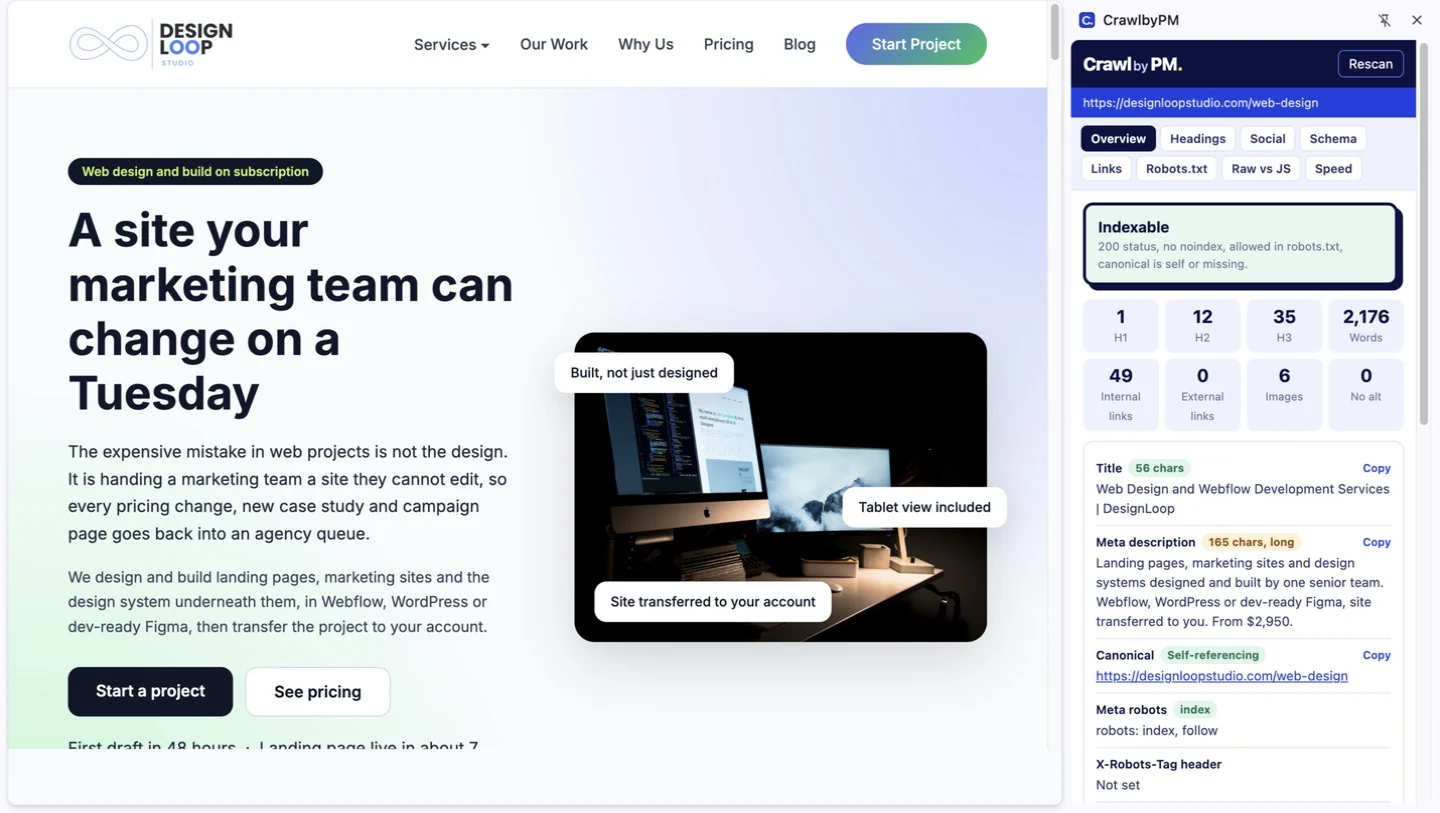
A verdict box comes first. Ours said Indexable, with the reasons listed underneath: a 200 status, no noindex, allowed in robots.txt, and a canonical that points to itself or is missing. If any of those fail, this is where you find out.
Under the verdict are eight count tiles. Our page had 1 H1, 12 H2s, 35 H3s, 2,176 words, 49 internal links, no external links and 6 images, none missing alt text.
Next come the head tags, each with a Copy button. The title was 56 characters and got a green label. The meta description got an amber “165 chars, long” label, and that one is fair. Our description ends with the starting price, which is the part most likely to be cut off in search results. Moving the price forward, or trimming the whole thing to about 150 characters, fixes it. The canonical points to itself, meta robots reads “index, follow” and the page sends no X-Robots-Tag header.
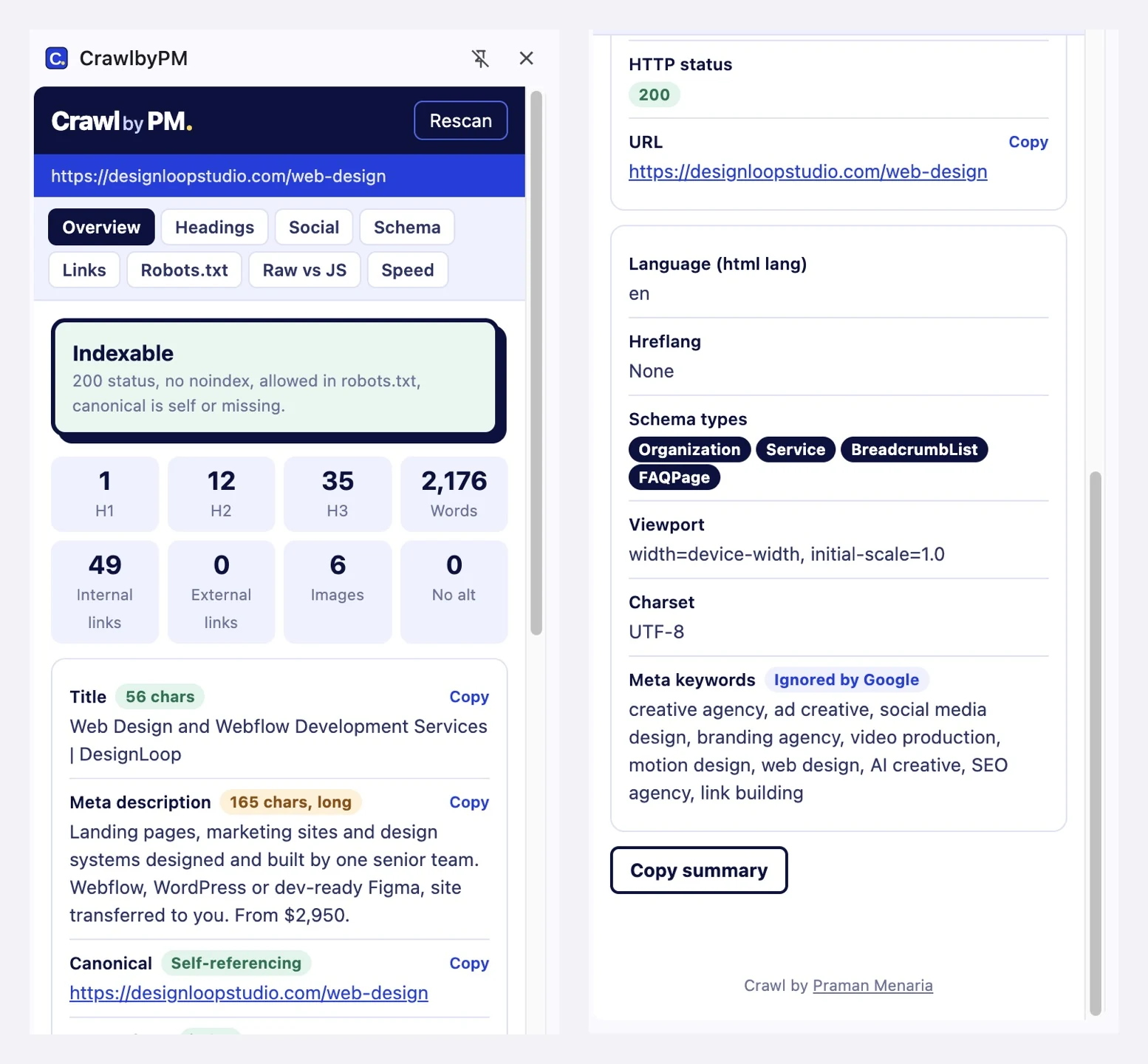
Further down the panel are the HTTP status, the page language (en), hreflang (none, which is correct for a single-language site), the schema types on the page, the viewport and the charset. Our page still has a meta keywords tag, and CrawlbyPM labels it “Ignored by Google”. It does no harm, but it is leftover code we can remove. At the bottom, a Copy summary button gives you the results to paste into a QA ticket.
Pass if: the verdict says Indexable and the canonical matches the URL you are about to publish.
2. Headings: does the outline make sense?
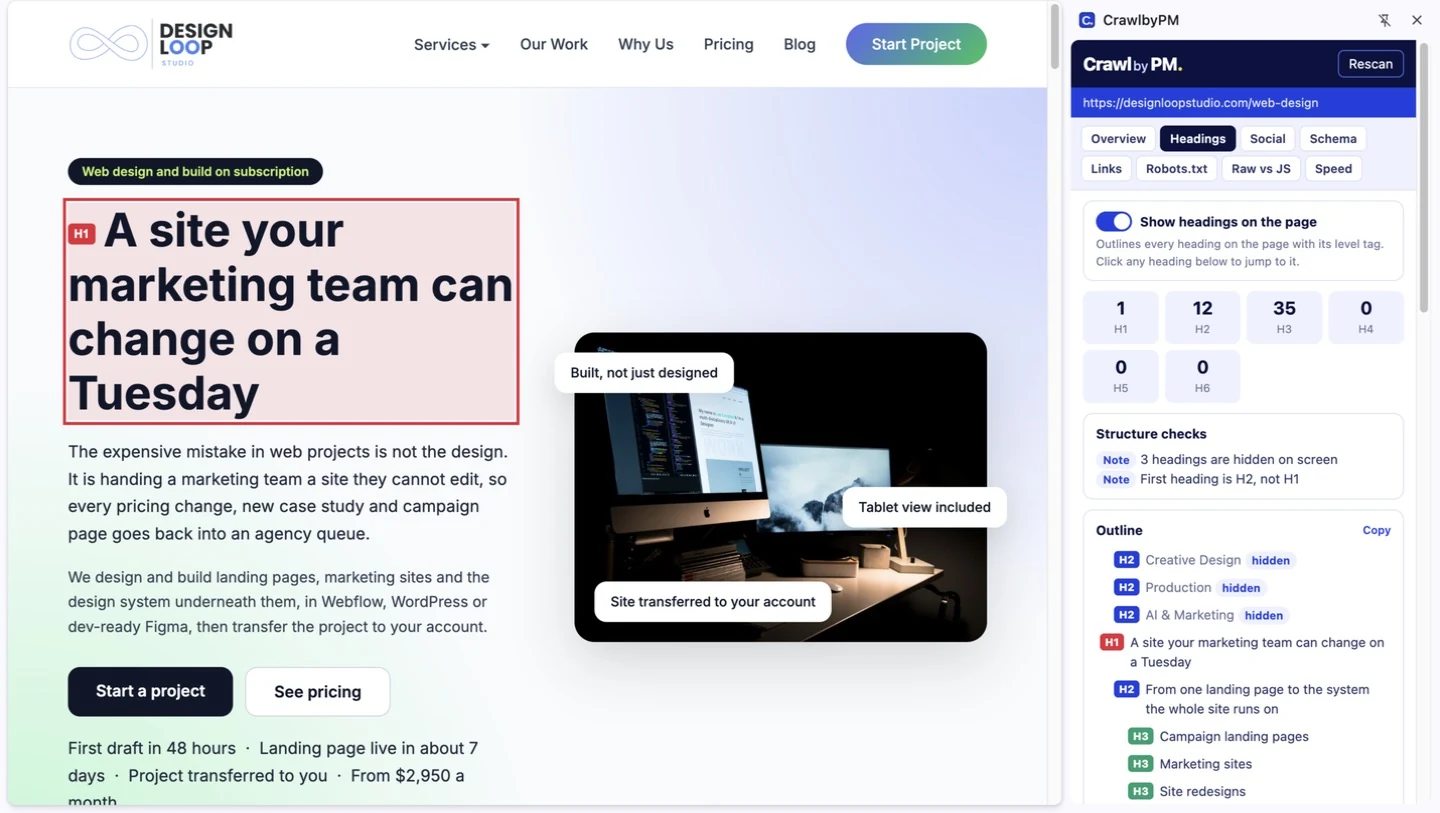
The Headings tab lists every H1 to H6 on the page as an outline. Switch on Show headings on the page and each heading on the live page gets a colored outline with its level tag, so you can see the structure without opening DevTools. Click a heading in the outline and the page jumps to it.
The tab also runs structure checks. According to the developer, it flags a missing or repeated H1, skipped heading levels and empty or hidden headings. On our page it raised two notes: “3 headings are hidden on screen” and “First heading is H2, not H1”.
The outline shows why. The three column labels in our Services dropdown (Creative Design, Production, AI & Marketing) are coded as H2 tags. They stay hidden until someone opens the menu, and because the menu comes first in the HTML, the page’s first heading is an H2. This will not sink the page, but menu labels do not need heading tags. Turning them into plain text gives crawlers an outline that starts with the H1.
Pass if: there is one H1 that describes the page, no skipped levels and no headings used for navigation.
3. Social: what will the link look like when shared?
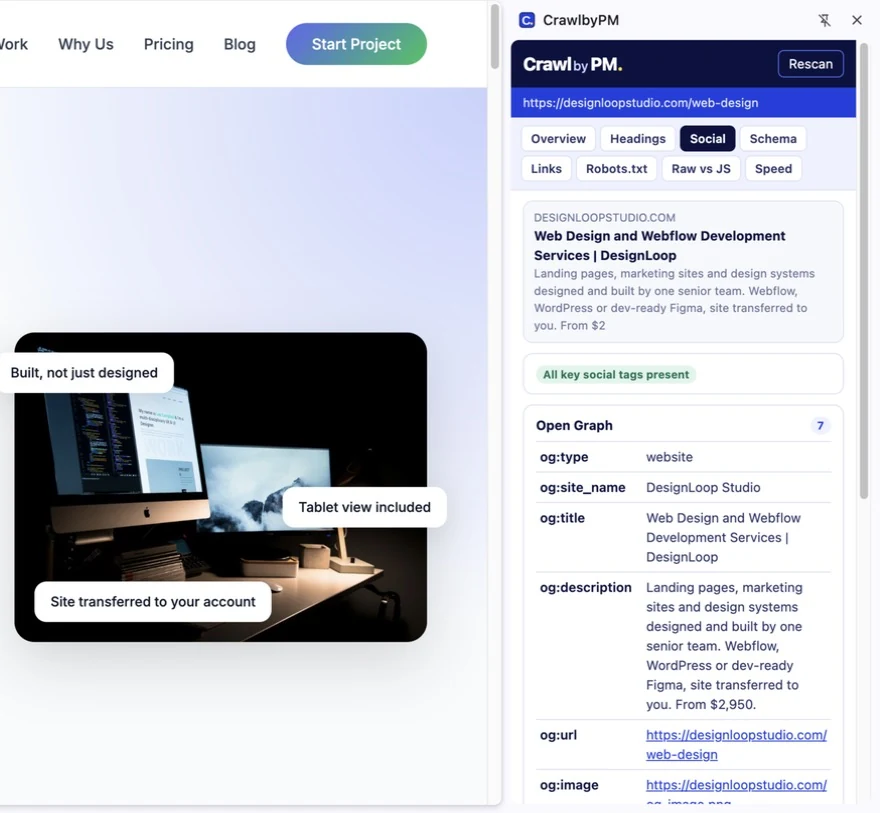
The Social tab opens with a share preview showing the domain, title and description the way a link card would. Under it is a summary label (ours said “All key social tags present”) and a table of every Open Graph tag on the page. We had seven, from og:type to og:image. Twitter card tags are listed further down.
The preview cut our description off at “From $2”, which is the same lesson as the Overview tab: put the important part first. If the preview shows no image, fix that before anything else, because people scroll straight past a shared link without one. If you need a proper share image, that is the kind of asset our social media design team makes.
Pass if: the title, description, URL and image are all set, and the preview makes sense without the page around it.
4. Schema: is the structured data valid?
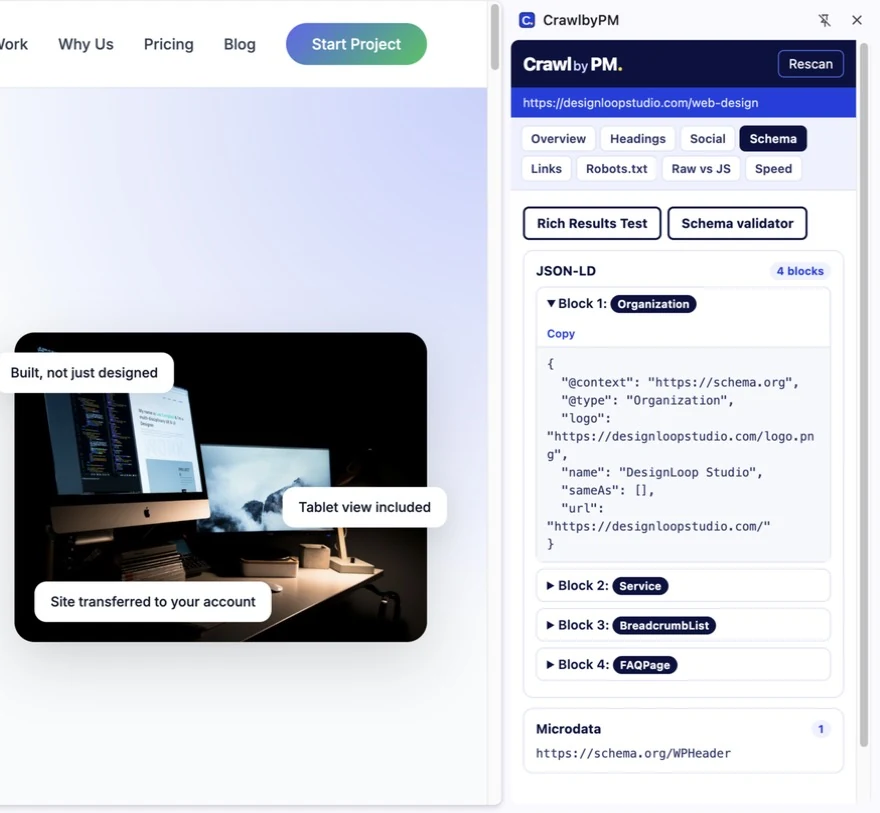
The Schema tab lists every JSON-LD block on the page with its type. You can open each block to read or copy it, and the tab flags any block with invalid JSON. Two buttons at the top open Google’s Rich Results Test and a schema validator for the current page, so you do not have to copy the URL across.
Our page has four blocks: Organization, Service, BreadcrumbList and FAQPage. The tab also found one Microdata item (WPHeader) that I had not noticed before. Inside the Organization block, the "sameAs" property is an empty list. It is meant to hold the brand’s official profile links, so it should either be filled in or removed.
Pass if: every block is valid JSON, the types match what is actually on the page, and the Rich Results Test shows no errors.
5. Links: is anything broken or redirecting?
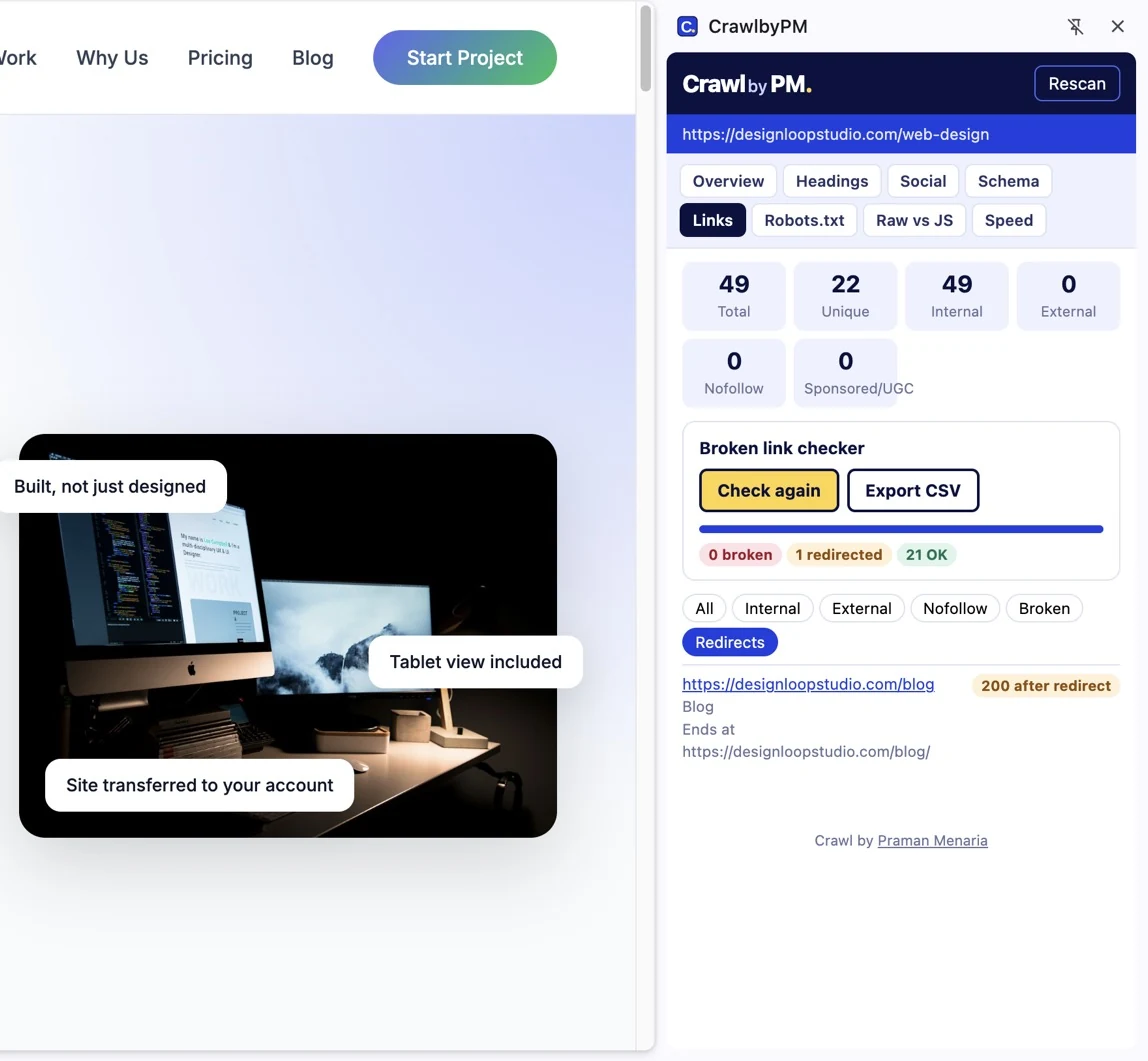
The Links tab counts the links on the page by type. Ours had 49 in total and 22 unique, all internal, with no external, nofollow, sponsored or UGC links. Each link is listed with its anchor text, and you can filter the list by Internal, External, Nofollow, Broken or Redirects.
The broken link checker is the most useful part. It requests each unique link from your browser and reports 4xx and 5xx errors, failed requests and redirects. Our run found 0 broken links, 1 redirect and 21 links that returned OK. The redirect was the Blog link in our main menu, which points to /blog and ends up at /blog/. Changing the link to the final URL removes that extra hop from every page that has the menu. You can export the results as a CSV file.
The checker only looks at links leaving the page. To see which other sites link to you, use one of these free backlink checker tools.
Pass if: there are no broken links, and any redirects are ones you set up on purpose.
6. Robots.txt: can AI crawlers reach the page?
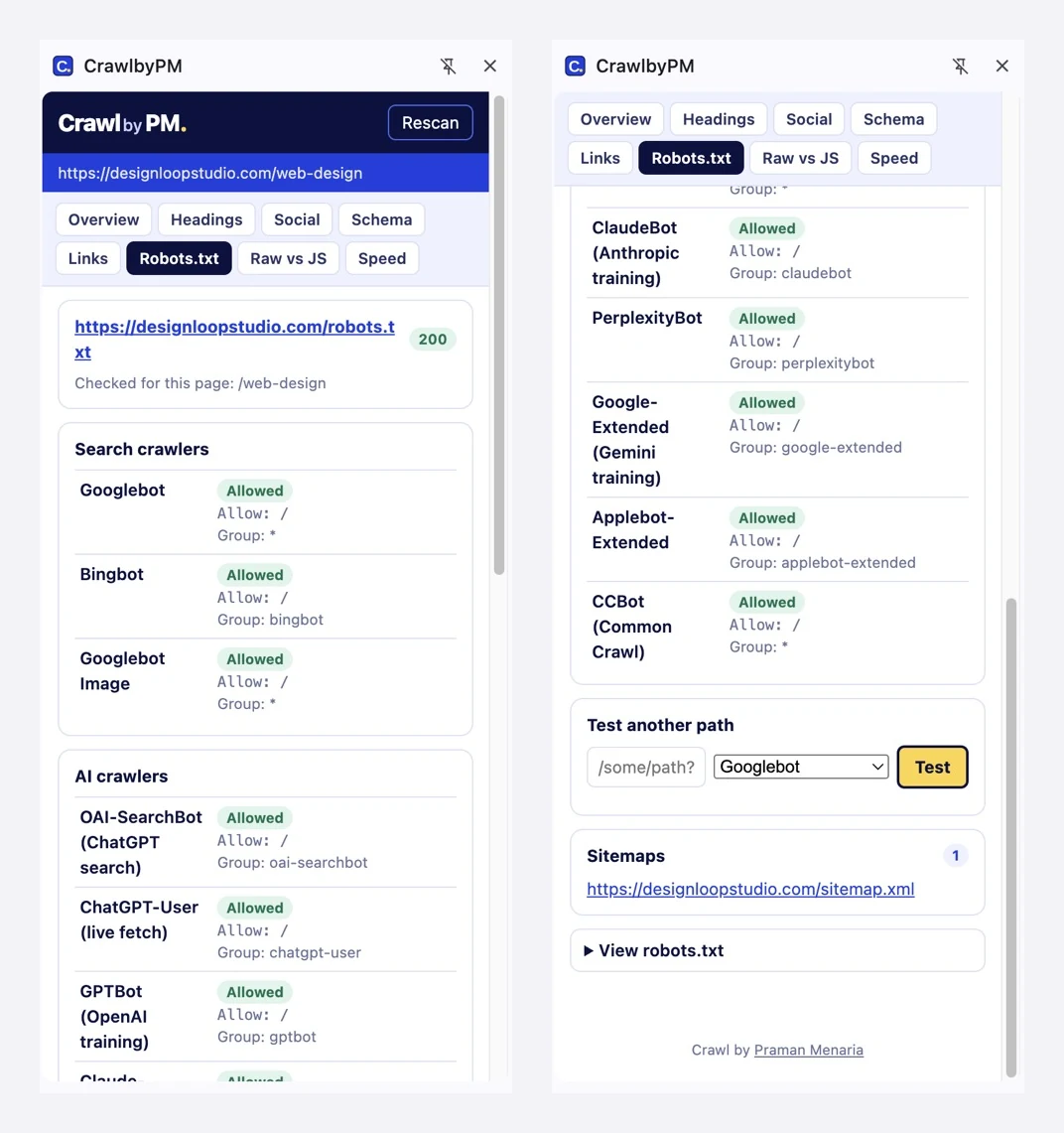
This is the tab I would install CrawlbyPM for. It reads the site’s robots.txt and tells you, bot by bot, whether the page you are on is allowed or blocked. It also shows the exact rule that matched and which user-agent group it came from, using Google’s matching logic.
It checked 13 crawlers on our page, in two lists:
- Search crawlers: Googlebot, Bingbot and Googlebot Image.
- AI crawlers: OAI-SearchBot (ChatGPT search), ChatGPT-User (live fetch), GPTBot (OpenAI training), Claude-SearchBot, Claude-User (live fetch), ClaudeBot (Anthropic training), PerplexityBot, Google-Extended (Gemini training), Applebot-Extended and CCBot (Common Crawl).
All 13 were allowed. Look at the group column as well as the verdict. Most bots matched a group written for them by name, such as gptbot or claudebot. Claude-User and CCBot matched the catch-all * group, which means our robots.txt has no rule written for them. They are still allowed, but now we know which bots we have not made a deliberate decision about.
The labels next to each bot help too. Blocking a training crawler like GPTBot is a different decision from blocking a search crawler like OAI-SearchBot, and the panel makes the difference obvious. Under the list, Test another path checks any URL path against any of the bots, and the tab also lists the sitemaps your robots.txt declares (we have one).
Pass if: the bots you want in search results are allowed, and anything blocked is blocked on purpose.
7. Raw vs JS: what does a crawler see before JavaScript runs?
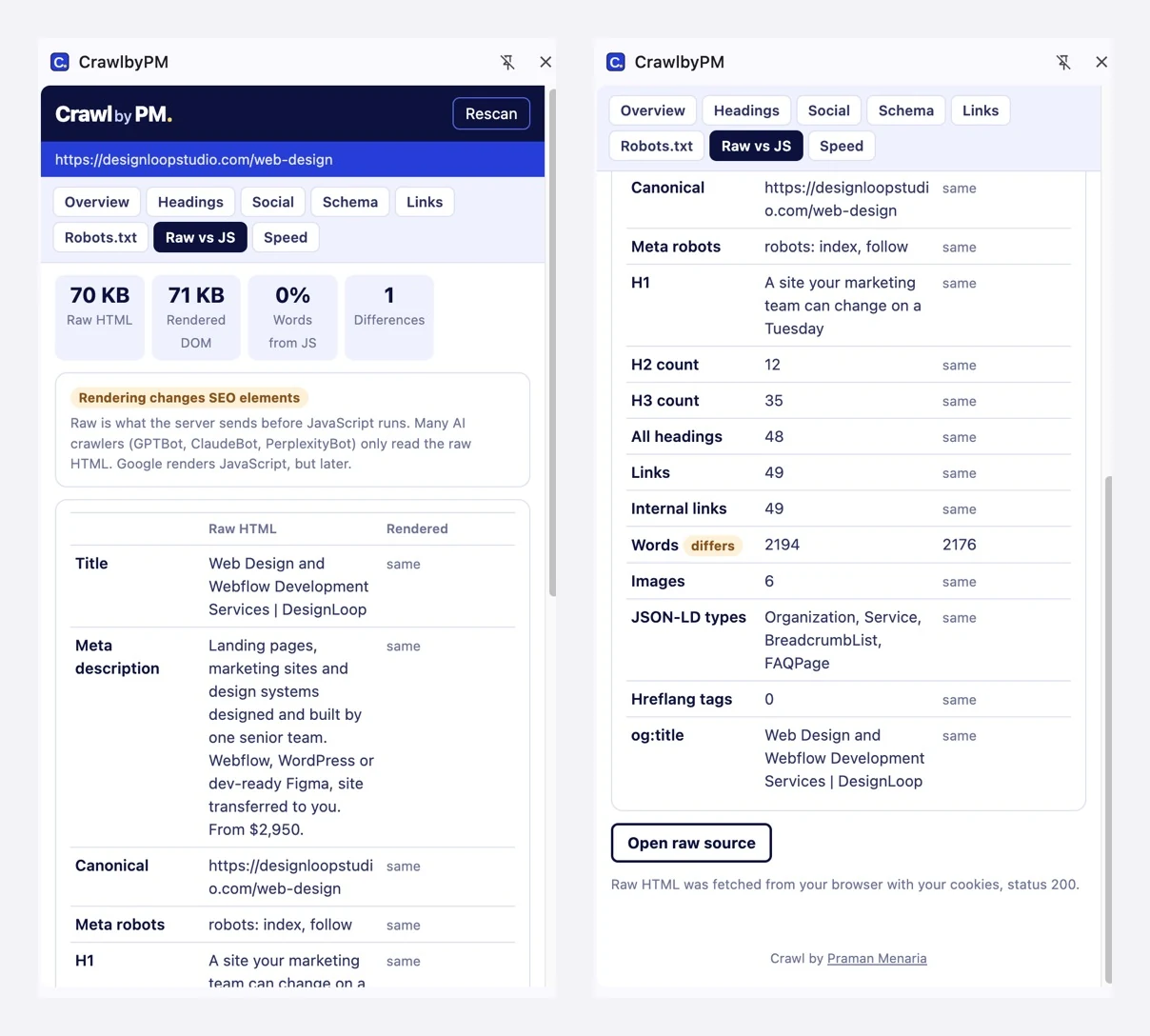
“Raw” is the HTML your server sends, and “rendered” is the page after JavaScript has run. Google renders pages, though not straight away. GPTBot, ClaudeBot and PerplexityBot only read the raw version, as the panel itself points out. The tab compares the two versions row by row: title, description, canonical, robots, H1, heading counts, links, word count, images, JSON-LD types, hreflang and og:title.
Our page came to 70 KB of raw HTML and 71 KB once rendered, and 0% of its words came from JavaScript. Every row said “same” except the word count, which went from 2,194 in the raw HTML to 2,176 rendered. That 18-word gap was enough to show the amber “Rendering changes SEO elements” label at the top. Check the table before you worry about the label. Here the difference was a few words, not missing content.
On a site built with a client-side JavaScript framework, this tab is where you would see headings or links that only exist after rendering, and it lists those separately. Open raw source shows the HTML the extension fetched, which it requests from your own browser with your cookies.
Pass if: the title, canonical, robots tag, H1 and main content are all in the raw HTML.
8. Speed: a quick lab test
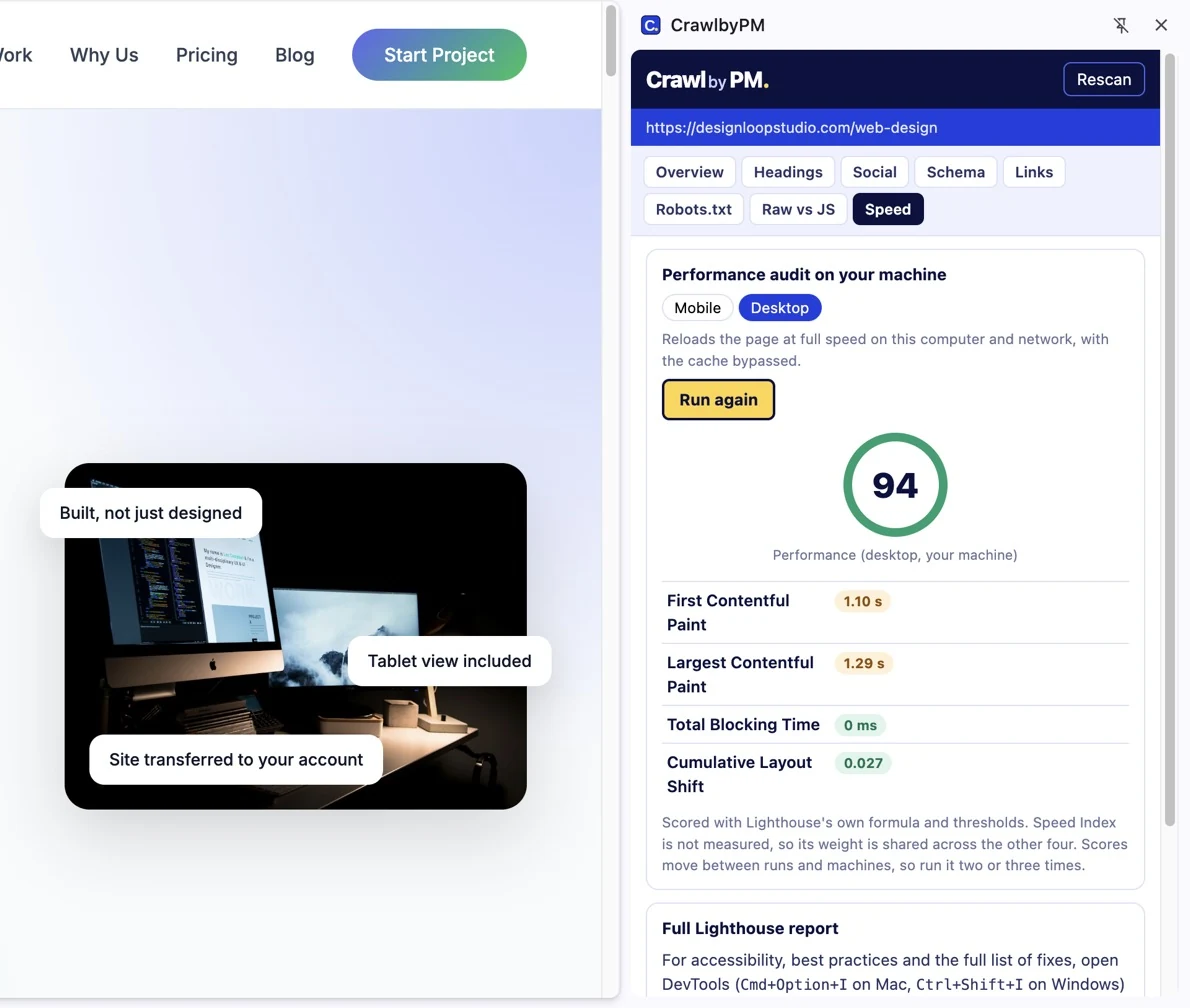
The Speed tab runs a Lighthouse-style performance audit on your own machine. Desktop mode reloads the page at full speed with the cache bypassed. Mobile mode simulates a phone on slow 4G with a CPU four times slower, but it first needs Chrome’s permission to slow down the tab, so we ran Desktop.
Our page scored 94. First Contentful Paint was 1.10 s, Largest Contentful Paint 1.29 s, Total Blocking Time 0 ms and Cumulative Layout Shift 0.027. You do not need an API key.
CrawlbyPM is upfront about the limits. It scores with Lighthouse’s formula but does not measure Speed Index, and the panel itself says scores change between runs and machines, so you should run it two or three times. For real-user data it links straight to PageSpeed Insights. Treat this tab as a quick warning sign: if a page that should be fast suddenly scores badly, find out why before it goes live.
Pass if: no metric shows red across a couple of runs. Once the page has traffic, check the real-user data in PageSpeed Insights.
What one run found on our page
| Check | What CrawlbyPM showed | Suggested fix |
|---|---|---|
| Indexability | Indexable, 200 status, canonical points to itself | None needed |
| Meta description | 165 characters, flagged as long | Trim to about 150 and move the price forward |
| Headings | 3 hidden H2s in the menu, first heading is an H2 | Make the menu labels plain text |
| Meta keywords | Present, labelled “Ignored by Google” | Remove the tag |
| Social tags | All key tags present, description cut off in the preview | Covered by the description fix |
| Schema | 4 JSON-LD blocks, empty sameAs in Organization | Add profile URLs or remove the property |
| Links | 0 broken, 1 redirect (/blog to /blog/) | Point the menu link at /blog/ |
| Robots.txt | All 13 bots allowed, Claude-User and CCBot fall back to the * group | Add explicit rules for both |
| Raw vs JS | Only difference is 18 words | None needed |
| Speed (desktop) | 94, LCP 1.29 s, CLS 0.027 | Run the mobile audit too |
None of these would have stopped the page from ranking. Still, one run turned up six small fixes on a page we care about, and none of them were visible from the front end.
A pre-launch routine you can copy
This is the order I would run before any new page goes live, whether a team built it or you made it yourself in a free landing page builder:
- Overview: the page is Indexable, the canonical matches the final URL, and the title and description lengths are green.
- Headings: there is one H1 and no headings inside the menu.
- Social: the share preview has an image and reads well.
- Schema: every block is valid, then run the Rich Results Test.
- Links: run the broken link checker and fix any 4xx errors or redirects you did not plan.
- Robots.txt: search bots are allowed and AI training bots are set the way you want.
- Raw vs JS: the main content is in the raw HTML.
- Speed: run it two or three times, on desktop and on mobile.
The routine matters most during a redesign or migration, when URLs change and settings from staging tend to come along for the ride. If you are planning one, our guide to website redesign services covers what to ask an agency.
Pros and cons
Pros
- It is free, with no ads, no account and no tracking. The developer says the only requests go from your browser to the site you are checking.
- It checks AI crawler access bot by bot and shows the rule and group that matched.
- The Raw vs JS tab shows in seconds what crawlers that skip JavaScript will miss.
- Everything sits in one side panel that stays open while you move between pages.
- Copy buttons and the CSV export make it easy to pass findings to a developer.
Cons
- It checks one page at a time. It is not a site crawler.
- Speed results are lab data from your own machine, and mobile mode needs an extra Chrome permission.
- It is brand new. Version 1.0.0 has no Chrome Web Store ratings yet, so it has no track record.
- Some flags need a human to judge them. The amber Raw vs JS label appeared over an 18-word difference.
- The Chrome Web Store is the only place it is listed, so it is a Chrome tool.
Who should use CrawlbyPM
It suits anyone who publishes pages and wants a two-minute sanity check. That includes marketers shipping landing pages, design teams handing over builds (like the studios in our list of Webflow agencies), developers working on JavaScript-heavy sites and SEOs doing spot checks.
Look elsewhere if you need a full-site crawl, real-user Core Web Vitals, or log data showing which bots actually visited. CrawlbyPM tells you whether a bot is allowed in, not whether it came.
Final verdict
CrawlbyPM does one job well. It shows what Google and AI crawlers will get from the page in front of you. The Robots.txt and Raw vs JS tabs answer the two questions AI search has added to a launch checklist, and the other six tabs cover the usual checks without leaving the browser. It is a version 1.0 tool, so use it as a fast first pass, not the final word. On our own page it found six small fixes in one sitting, and that is what a pre-launch check is for.
If you would rather someone else ran this list for you, our web design team designs and builds landing pages and marketing sites, and our SEO and link building service takes over after launch. Start a project and tell us what you are launching.
Frequently asked questions
Is CrawlbyPM extension free?
Yes. The Chrome Web Store listing and the developer’s own page describe it as free, with no ads and no account, and neither mentions a paid plan.
Does CrawlbyPM extension collect any data?
The developer declares on the Chrome Web Store that the extension does not collect or use user data. He also says the only requests it makes go from your browser to the site you are checking.
Can CrawlbyPM tell me if GPTBot is blocked on my site?
Yes. The Robots.txt tab shows whether GPTBot, OAI-SearchBot, ChatGPT-User, ClaudeBot, Claude-SearchBot, PerplexityBot, Google-Extended and other crawlers are allowed on the current page. It also shows the rule in your robots.txt that matched.
What does the Raw vs JS tab show?
It compares the HTML your server sends with the page after JavaScript has run, row by row. You can see whether titles, headings, links or content only appear after rendering. That matters because most AI crawlers read only the raw HTML.
Is the CrawlbyPM speed score the same as PageSpeed Insights?
Not exactly. CrawlbyPM uses Lighthouse’s scoring formula but runs on your own machine and network, and it does not measure Speed Index. Expect some difference between the two, and use PageSpeed Insights for real-user data.
Can CrawlbyPM audit a whole website?
No. It only checks the page open in your current tab. To audit a whole site you need a crawler. CrawlbyPM is for checking single pages before or after a change.
Who made CrawlbyPM?
Praman Menaria, an SEO, AEO and GEO consultant based in Udaipur, India. The extension is listed under his name on the Chrome Web Store, and he has a CrawlbyPM page on his own site.