 Mayur Bhatasana
Choosing the top video editing software varies based on what type of content you create, your editing expertise and the device you’re using. Cap Cut is great for social videos on the fly, while Adobe Premiere Pro is preferred for high-production videos. Final Cut Pro is a very robust option for professionals on Mac, and Filmora is recommended as an entry level option for beginners. Canva and InShot are also helpful for branded social content and easy mobile editing, respectively.
Top Three Picks
| Tool | Best For |
| Final Cut Pro | Professional editing for Mac creators |
| CapCut | Short-form and social content |
| Adobe Premiere Pro | Advanced creator and professional workflows |
Introduction
Video has become one of the most popular formats for creators, brands, instructors, influencers and companies. Creators need editing software to be able to publish videos regularly, including everything from YouTube videos and Instagram reels to tutorials and advertisements.
The latest video editing tools not only cut clips and add music but also enable AI captions, background removal, audio enhancement, auto-reframing, templates, motion graphics, content repurposing and much more.
The correct decision, though, is contingent on your workflow. A creator making 10 short videos from a phone may require a very different editor from a YouTuber making 30-minute videos with multiple cameras.
What Modern Content Creators Need From Video Editing Software
An ideal editor has to cut down the gap between recording and publishing without constraining the artist’s creativity. Creators demand rapid editing and assured rendering to upload often, even offering long and short content support. While automation tools like captions, noise reduction, and object recognition can help reduce repetitive tasks, powerful audio and effects capabilities matter. Platform compatible exports and collaboration tools can enable artists to manage content on YouTube, Instagram, TikTok, and also keep track of production teams.
How We Reviewed the Video Editing Software
Instead of listing the number of features, we compared the six editors on the creator-centric factors. This was done based on editing features, AI features, ease of use, export quality, availability on various platforms, price and content types.
The present industry comparisons show a similar divergence. Premiere Pro is usually said to be aimed at professional production, CapCut at quick social content, and DaVinci Resolve as a good free professional editor.
Video Editing Software Compared at a Glance
| Tool | Best For | AI Features | Free Version | Starting Price |
| CapCut | Short-form social content | Strong | Yes | Varies by region |
| Adobe Premiere Pro | Professional production | Strong | 7-day trial | ₹599/month first year |
| Final Cut Pro | Mac-based professional editing | Strong | Trial available | One-time purchase |
| Filmora | Beginners and growing creators | Strong | Limited/free edition | US$49.99/year |
| Canva | Branded social content | Strong | Yes | Varies by plan |
| InShot | Mobile editing | Moderate | Yes | Varies by platform |
1. CapCut
Rating: 4.7/5
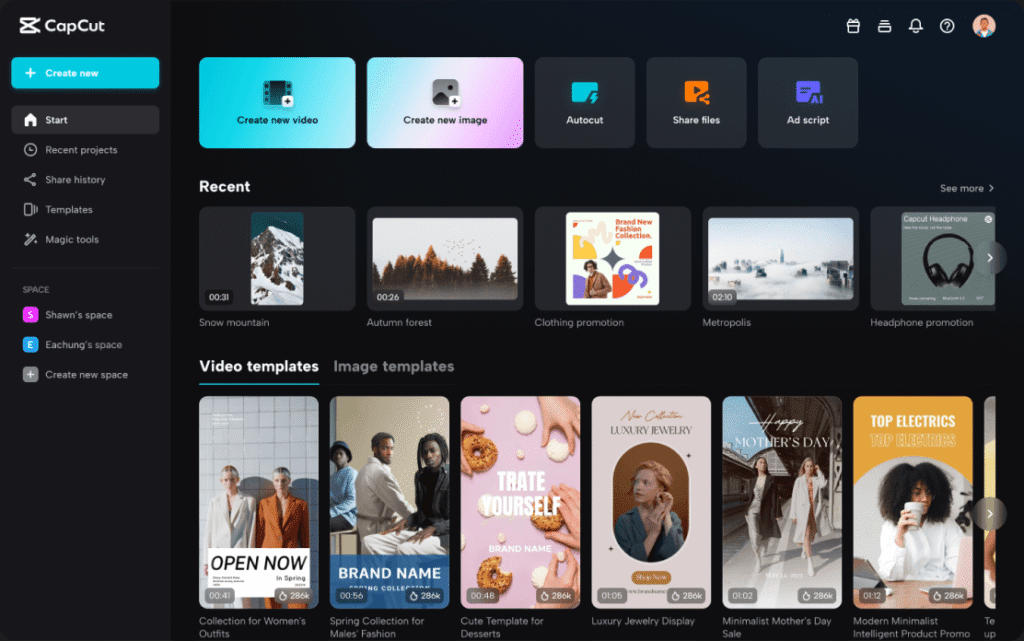
CapCut is also built for speed and social first editing. This is mainly helpful for content creators making Reels, Shorts, TikTok style videos, product videos and other short form videos.
Its interface has streamlined the usual editing processes, and its templates, captions, effects, transitions, and AI powered features enable creators to produce content with speed. CapCut also supports editing in mobile, desktop, and web environments.
If you’re a creator looking for a video editor for YouTube Shorts, Reels on Instagram, or any other rapidly moving social content, CapCut can make editing much faster. Price varies depending on where you are, your device, and current deals. CapCut suggests going to the CapCut account or app for the current price.
Key Features
- Auto captions and AI-assisted editing
- Social media templates and effects
- Mobile, desktop, and web editing
- Quick resizing for different formats
- Cloud-based project workflows
Pros
- Very easy for beginners
- Excellent for short-form content
- Large collection of templates and effects
- Fast editing workflow
Cons
- Some advanced features require a paid plan
- Pricing varies by region
- Less suitable for complex professional post-production
Pricing
Free to use. The price of CapCut Pro depends on location and platform, and special offers.
2. Adobe Premiere Pro
Rating: 4.7/5
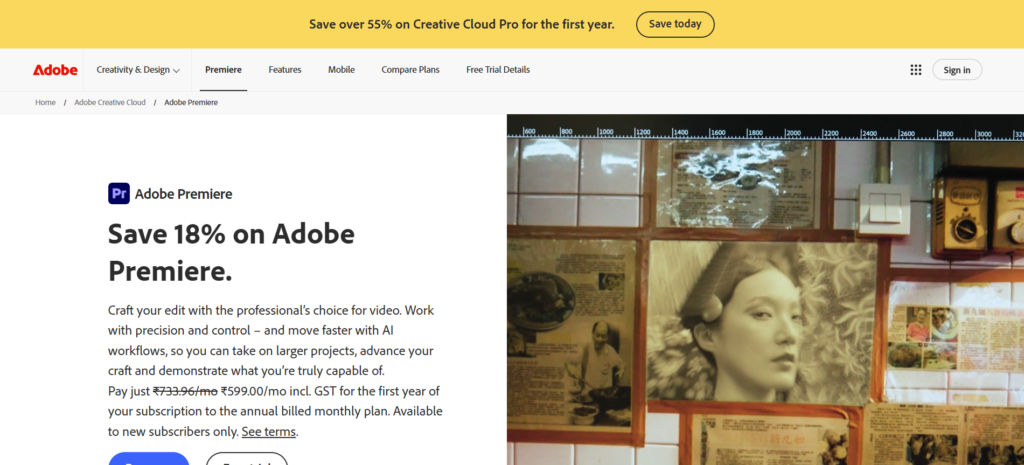
Adobe Premiere Pro is still a very strong option for creators needing professional editing control, with frame accurate editing, multi layered audio, colour controls, effects, title animation and integration with the Adobe family.
Premiere has, too, added its AI based features to enable creators to carry out monotonous tasks more quickly. Currently, Adobe offers Premiere for 599/month (including GST) for the first year under its annual billed-monthly plan, with a normal price of 733.96/month. You can avail of the 7-day free trial.
Professional YouTubers, agencies, filmmakers and clients. Premiere Pro provides you with a production environment more advanced then your regular template-based editing package.
Key Features
- Professional timeline editing
- Advanced audio and visual controls
- AI-assisted editing capabilities
- Adobe Creative Cloud integration
- Frame-accurate production workflows
Pros
- Powerful professional editing tools
- Excellent ecosystem integration
- Suitable for complex projects
- Strong audio and visual controls
Cons
- Steeper learning curve
- Subscription-based pricing
- Requires relatively capable hardware
Pricing:
- ₹599/month including GST for the first year.
- ₹733.96/month including GST after the first year.
- Annual plan, billed monthly.
- 7-day free trial.
3. Final Cut Pro
Rating: 4.8/5
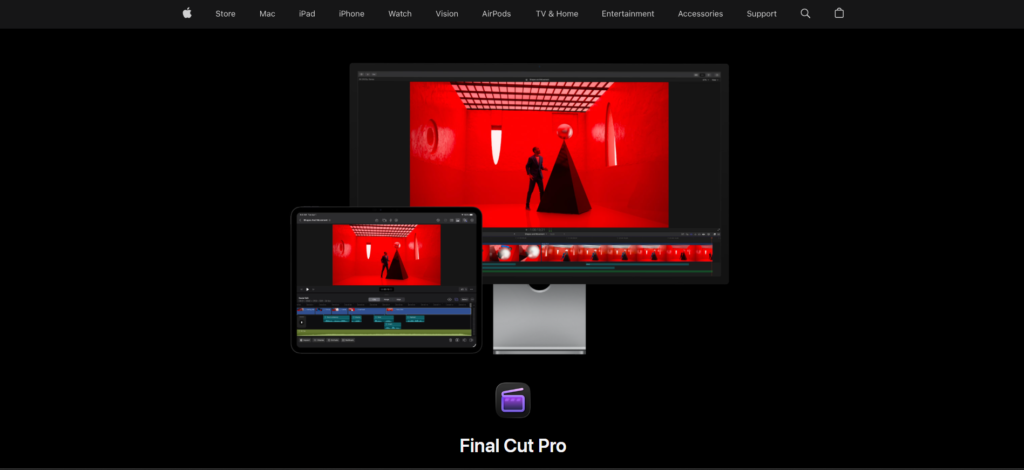
Final Cut Pro is a professional-level video editing program from Apple that is meant to be used by Mac users who need a fast and powerful program with a lot of editing control. Final Cut Pro’s Magnetic Timeline allows footage, audio, titles, and effects to be quickly added without gaps or conflicts in the timeline.
Final Cut Pro is tailored for YouTubers, filmmakers, social media content creators, and professional editors currently in the Apple world. It offers powerful colour correction, professional audio editing, motion graphics, multicam editing, and high-res workflows.
Its optimised functioning on Apple silicon could perhaps make it a little more applicable to intensive editing tasks-especially those requiring high definition footage.
Key Features
- Magnetic Timeline
- Advanced colour correction
- Multicam editing
- Professional audio tools
- Motion graphics integration
- High-resolution video support
- Optimised performance for Mac
Pros
- Fast performance on Mac
- Professional editing capabilities
- Intuitive Magnetic Timeline
- Strong Apple ecosystem integration
- Suitable for demanding video projects
Cons
- Available only for Apple devices
- Can take time for beginners to learn
- Less suitable for creators working across different operating systems
Pricing
You can purchase one copy of Final Cut Pro from Apple, according to the country, state, or territory in which you reside. Apple also has a free trial version available for certain users.
4. Wondershare Filmora
Rating: 4.5/5
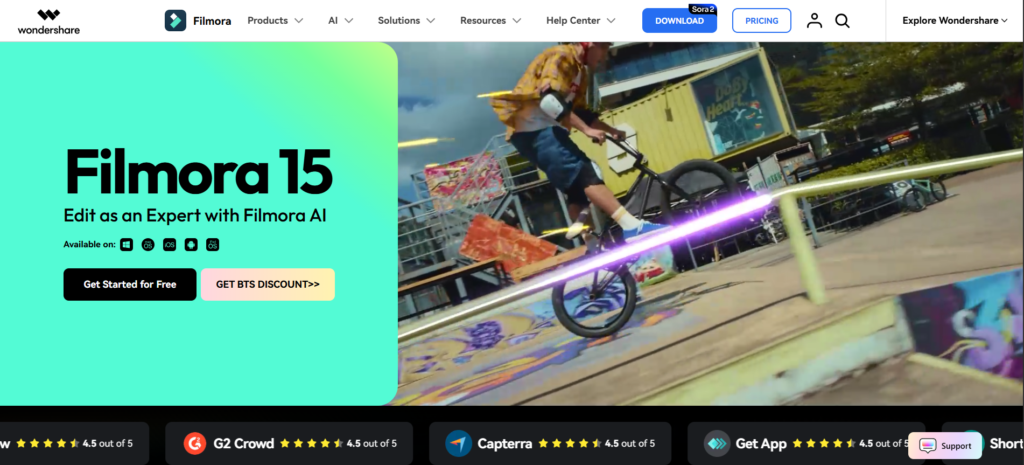
Filmora falls somewhere in between the entry level mobile editors and complicated professional editing tools. The simple drag and drop style to the interface made it very easy to pick up for beginners, but it had enough effects, transitions, AI features, captions, and advanced editing options to keep creators busy.
It can be especially handy for content creators who wish to make sleek videos without dedicating weeks to learning a professional non linear editor. Filmora provides AI credits for its semi automatic workflows, including smart scene editing, speech to text, text to speech, and more.
Key Features
- Drag and drop editing
- AI powered tools
- Titles, transitions, and effects
- 4K video export
- Creative asset library
Pros
- Easy to learn
- Strong balance of simplicity and features
- Useful AI tools
- Good choice for regular content production
Cons
- Some features depend on AI credits
- Advanced professional workflows are less extensive than Premiere or Resolve
- Some plans and assets are sold separately
Pricing:
Basic: US$9.99/month
Advanced: US$29.99/year
Perpetual: US$49.99 one-time payment
Free Trial: 7-day free trial for Filmora Creative Assets
5. Canva
Rating: 4.4/5
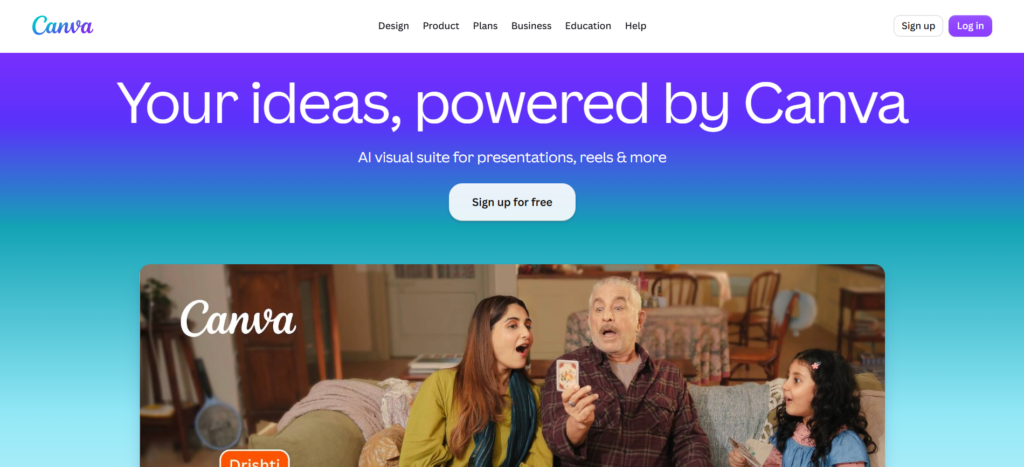
While Canva may primarily be recognised as a graphic design tool, it does have some editing features too, which can come in handy for creators creating social media content, presentations, advertisements, tutorials or branded videos.
Its biggest benefit is the link between video and design. A creator can remix a video add animated text design social graphics build thumbnails and manage brand assets all in one environment
Key Features
- Social video templates
- Animated graphics
- Brand assets and templates
- Browser-based editing
- Collaboration tools
Pros
- Extremely beginner-friendly
- Excellent for branded content
- Works in a browser
- Strong template library
Cons
- Less powerful for complex editing
- Advanced timeline control is limited
- Some premium assets require Pro
Pricing:
- Free: ₹0/year
- Pro: ₹4,000/year
- Business: ₹6,800/year
- Enterprise: Custom pricing
6. InShot
Rating: 4.3/5
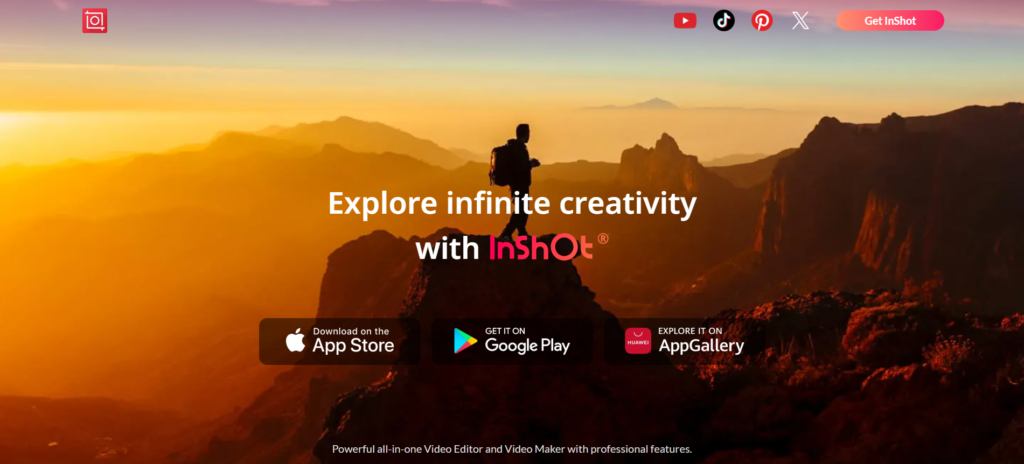
InShot is more of a mobile first app for video creation. It will be especially helpful for content creators who shoot videos primarily using a cell phone and are interested in editing, cropping, resizing and captioning the video and posting it without transferring any files to a computer.
The app contains normal social formats, along with speed controls, music, voice overs, filters, transitions and other one touch editing.
Key Features
- Mobile-first editing
- Speed and crop controls
- Voiceovers and music
- Filters and transitions
- Social media exports
Pros
- Very simple interface
- Convenient for phone creators
- Fast for short videos
- Good social-media support
Cons
- Not designed for complex projects
- Smaller desktop workflow
- Advanced production tools are limited
Pricing:
InShot free and paid versions are available. Which one is free or paid depends on the platform as well as the country of the user.
Also Read: Top Branding and Design Tools for Startups
The Creator Video Editing Workflow Explained
A dependable workflow may be more important than hundreds of editing options.
1. Organise Raw Footage
Clone clips by project, camera, date and content type. This will speed up editing and will help ensure you don’t lose valuable footage.
2. Build the Initial Cut
Erase the errors, pauses, multiple takes, and sections you don’t need before you work on effects so you get a clear story.
3. Enhance Visuals and Sound
Refine exposure, colour, music volume, voice quality and other factors once the outline is finished.
4. Add Captions and Graphics
Captions make videos more accessible and easier to follow when heard without sound.
5. Create Multiple Aspect Ratios
A single recording can quickly become a landscape YouTube video, a vertical Short, Reel, TikTok or marketing clip.
6. Export the Final Version
Select the resolution, fps, compression and aspect ratio to be optimised for the publishing platform.
AI Features Reshaping Video Editing in 2026
AI is now integrated into the editing functionality instead of being a separate feature.
Automatic captions can transcribe audio to text in seconds. AI mask removal can separate people or objects from the background without requiring any masking. Audio enhancement can suppress background noise and make voice sound clearer.
Today’s editors are also embracing auto scene detection, intelligent reframing, generative editing, AI powered effects, as well as repurposing the content. DaVinci Resolve Studio comes with AI Neural Engine features, whereas Filmora offers AI-centric features with its credits.
But AI needs to enhance the creative decisions and not take over it. Creators would still go through the process of checking captions, pace, transitions, colour, and sound before publish.
From One Recording to Multiple Pieces of Content
In one recording, you have the ability to make a whole content package.
- Long-form YouTube video: Use the complete story with detailed explanations.
- YouTube Shorts: Extract the strongest 20–60 second moments.
- Instagram Reels: Reframe important sections vertically.
- TikTok clips: Use concise, attention focused sections.
- Social teasers: Make short teaser videos that will make people want to watch the whole thing.
- Thumbnail and graphic assets: Pull heavy frames or produce branded graphics in the same project.
This kind of repurposing strategy enables artists to capitalise on each recording session, especially when working with a creative partner like DesignLoop Studio for video and social content.
Desktop vs Mobile Editing for Modern Creators
Mobile editing is perfect for quick edits or those on the move. Using a smartphone app like CapCut or InShot, content creators can shoot, edit and upload content all from the same device.
A desktop editor is more worthwhile when working with several video tracks, complicated files, image correction, sophisticated audio and many effects.
Hardware is relevant too. Applications like DaVinci Resolve and Premiere Pro will make use of more powerful machines: more CPU cores, more RAM, faster disks, and dedicated graphics hardware.
Therefore, the best choice is not necessarily the software which offers the most features. It is that agrees most with production environment of the creator.
Free and Paid Video Editors: What You Get at Each Level
A free editor today is capable of a lot more than just trimming. A good example is DaVinci Resolve because even the free package has editing, colour, audio, effects & Ultra HD exporting.
Most paid plans tend to offer more AI features, premium templates, more cloud storage, more effects, higher export limitations, or business collaboration options though teams with large video libraries eventually outgrow basic storage and look at a dedicated video content management system instead.
Before subscribing, creators should evaluate if those features are really needed. A new creator creating three short videos a week probably doesn’t require a costly paid professional subscription.
Editing Mistakes That Slow Down Content Creation
A costly piece of software cannot make up for a poor workflow. Things like Over-editing simple videos can become distracting, using an abundance of transitions can distract away from the point of the video, and Neglecting audio quality can quickly make an already high quality video seem amateurish. Other poor habits include spending way too long captioning a video by hand when captioning can be done for you, and ignoring platform formats by not using the appropriate aspect ratio and resolution.
Lastly, poorly organised raw footage can take up more editing time and also make it difficult to locate the clips needed.
Final Takeaway
No single editor works for every creator. Your choice should depend on your content format, editing experience, device, budget, and production requirements.
Final Cut Pro is an excellent choice for Mac creators who want professional editing with fast performance. CapCut works well for quick social-first workflows, while Adobe Premiere Pro remains suitable for advanced professional production.
Filmora provides a balance between simplicity and advanced features, Canva works well for branded content, and InShot is useful for quick mobile editing.
Think about your actual workflow before deciding between these best video editing apps. For the quickest creation, go for a more basic editor. For better quality and future growth, spend time in a professional workflow.
FAQs
1. Is CapCut good enough for professional content?
For the majority of social videos, especially short form ones, CapCut might be sufficient. For those creators who want to do more complex colour grading or complex audio production, or more advanced post production, then it might be worth looking into Premiere Pro or DaVinci Resolve.
2. Which video editor is easiest for beginners
Some of the easier options include: Canva, InShot, CapCut and Filmora. Filmora is a good mix of simple editing tools and more advanced editing features.
3. Can Canva be used for video editing?
Yes. Canva includes functions for designing and editing videos in addition to its other capabilities. It allows users to have the benefit of having videos, graphics, templates, brand assets and social content all in one place.
4. What is the best mobile video editing app?
For quick social content, CapCut is a powerful choice where it works. InShot is another handy utility for creators seeking a straightforward on-the-go edit, with cropping, playback speed adjustment, music, voiceovers, and social exports.